Email capture
The widget asks for an email address and consent first, and shows the code after. Addresses go to the Subscribers list and, if you set it up, to your newsletter tool.
Switching it on
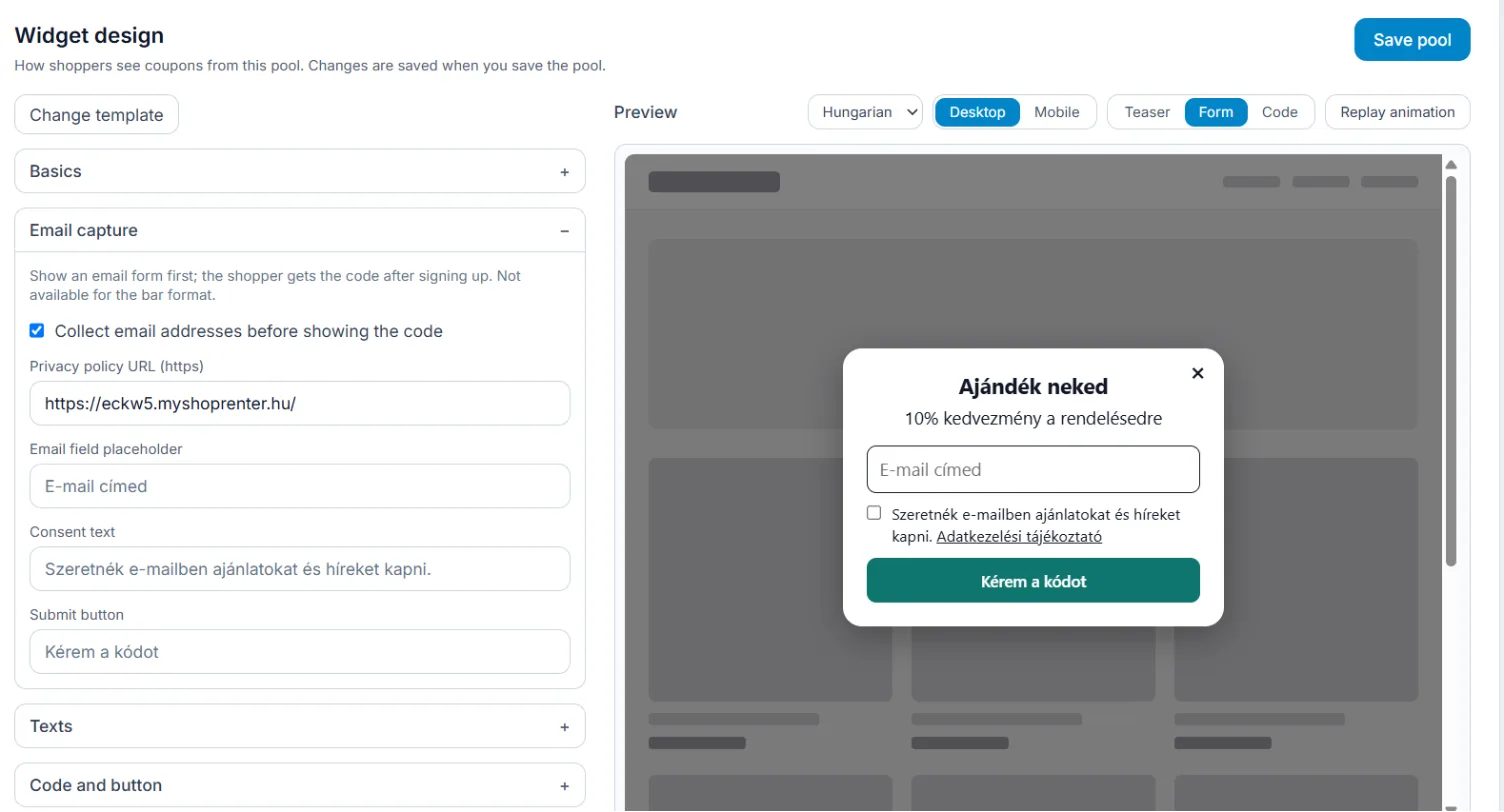
- On the coupon pool’s Appearance tab open the Email capture section and tick Collect email addresses before showing the code.
- Fill in Privacy policy URL (https) – it is required, and the widget shows it as a link.
- If you like, change the Consent text and the button text, then save the pool.
The Subscribers list
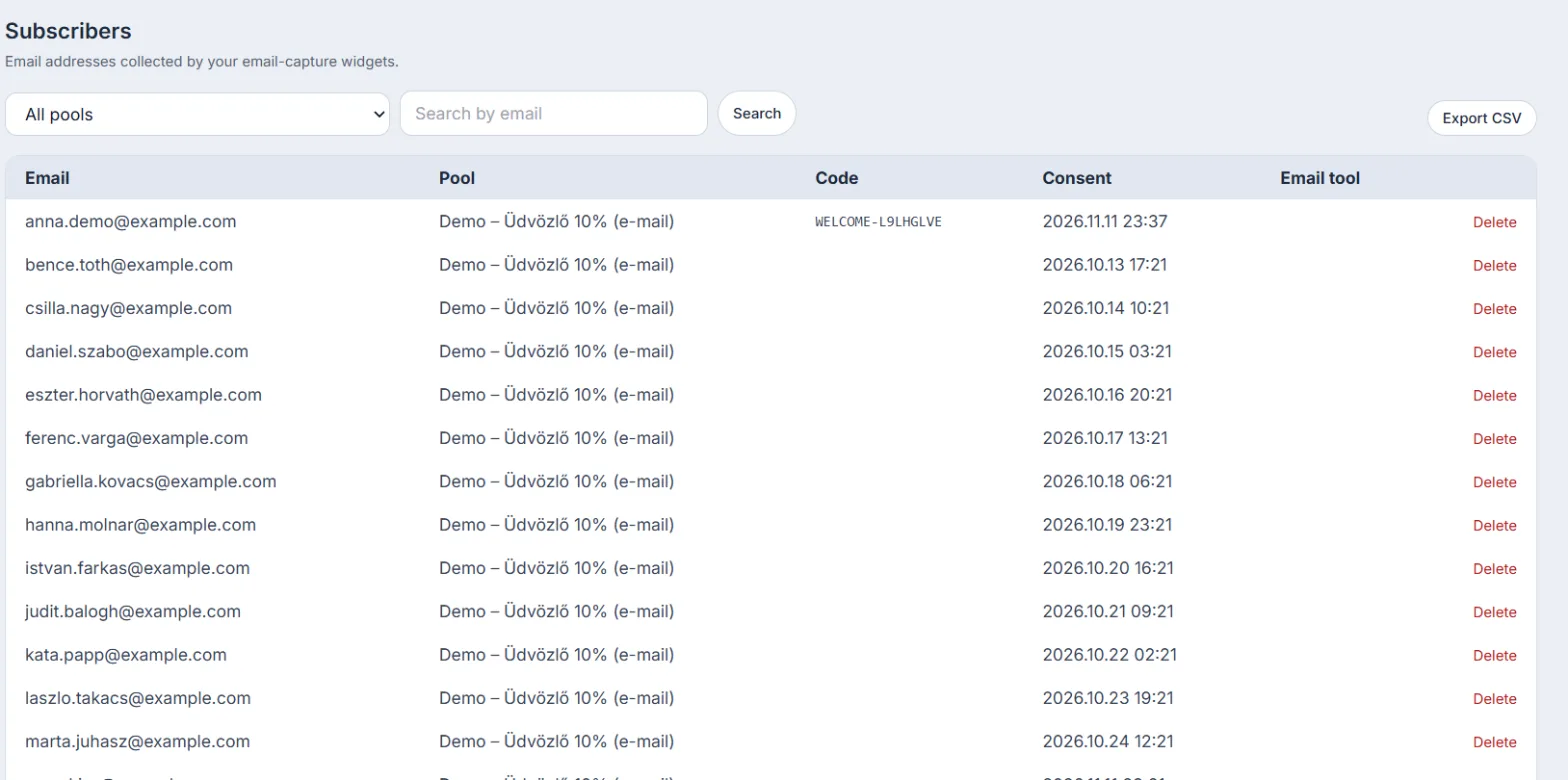
The Subscribers page shows every address with its pool, the code given out and the consent time. Filter by pool, search by email, and download with Export CSV. Delete removes the address from EasyCoupon only: delete it in your email tool as well.
Hand-over to your newsletter tool
- Klaviyo or Omnisend: under Settings, on the Integrations tab, in Subscriber sync (Klaviyo / Omnisend), enter the API key; for Klaviyo you can also pick a list (optional, Omnisend has no lists). The key is stored encrypted and never shown again.
- Shopify: no API key, through the app’s connection to your shop; the subscriber is created as a Shopify customer, subscribed.
The hand-over status shows in the list’s Email tool column.